7 Camera Views Worth Adding to a Complex Product Viewer
Plan a clearer 3D product viewer with seven camera views for hero presentation, technical inspection, interiors, materials, and configuration comparison.
TL;DR
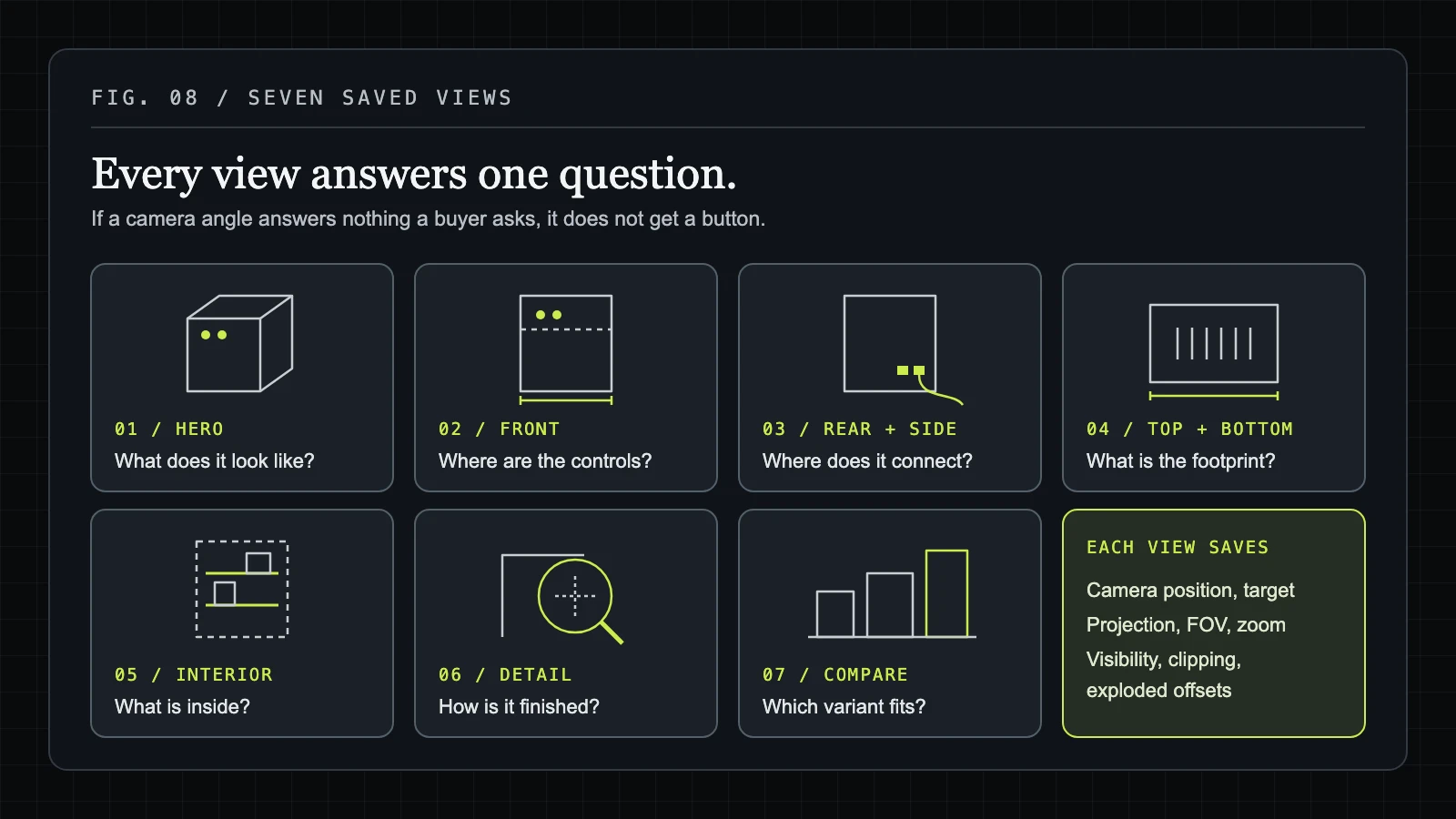
- Use a three-quarter perspective view as the default for the first product impression.
- Add front, rear, side, top, and bottom views only when they answer a real inspection question.
- Treat interior, exploded, and cutaway modes as model states as well as camera states.
- Save the camera position, target, projection, framing, and visibility settings together.
A single orbit camera can display a product, but it often hides the controls, connectors, rear surfaces, or internal parts buyers need to inspect. The best camera views for product visualization give each task a deliberate starting point inside the viewer.
These seven presets suit a complex Three.js product viewer inside a WebGL product visualization. They cover the first impression, technical inspection, installation, materials, hidden construction, and configuration comparison. The official model-viewer documentation is a useful reference for camera orientation and interactive 3D viewer terminology.
Why a complex product viewer needs more than one default angle
Orbit controls let users rotate around a model, but free rotation makes people search for information. A saved camera preset gives them a reliable route to a specific answer, such as "Where are the rear ports?" or "How deep is this compartment?"
In practical 3D product viewer camera angles, the camera position is only part of the decision. Store its target, projection, field of view, zoom, and any related model state. Exterior and interior 3D product views may need different visibility, clipping, transparency, or exploded offsets as well.
1. Three-quarter hero view for the first product impression
The three-quarter perspective view is the best default for most configurable products because it exposes the front and side without reducing either face to a narrow strip. Perspective projection makes nearer parts appear larger, which gives an appliance, vehicle component, or furniture product a familiar sense of depth.
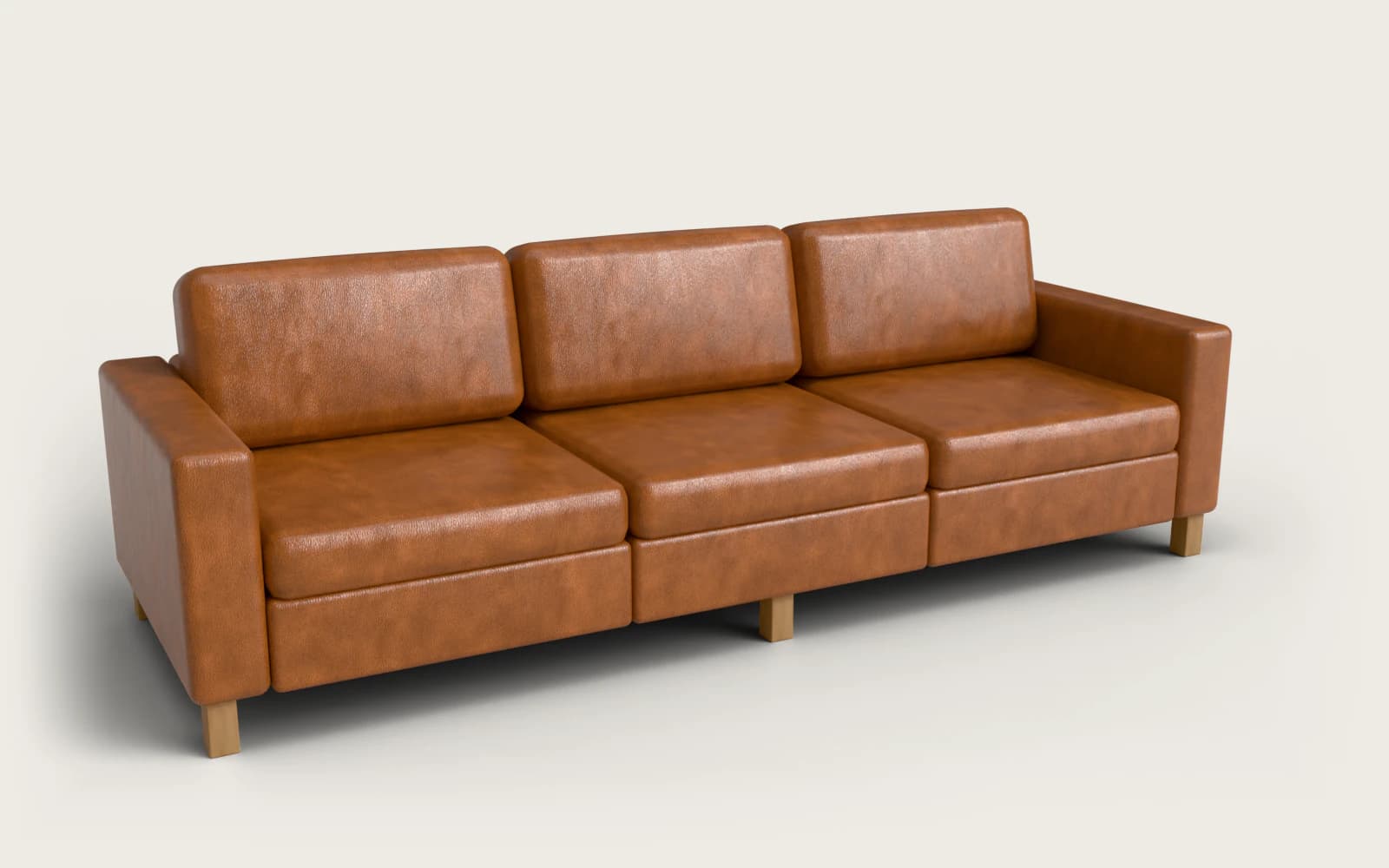
Center the model with consistent padding and aim the camera target at the visual center, not automatically at the file origin. For example, an appliance hero view can show front controls, side depth, and a little of the top profile before the user touches an orbit control. Store the starting orientation as a reproducible preset, using camera-orientation terminology consistent with the model-viewer documentation. The modular sofa demo uses this as its default: a three-quarter view that also resets the camera, with front, side, and top beside it.
2. Front orthographic view for dimensions and controls
A front orthographic view helps users compare proportions, read labels, inspect controls, or match the model against a technical drawing. Orthographic projection removes perspective size changes, so parallel edges and repeated components remain easier to compare at different depths.
It also makes depth harder to judge, so it shouldn't replace the hero view. Add a visible Front reset that changes the camera while preserving the active material, size, and component selections. A configurable door, for example, can use this view to make handle position and panel divisions easy to inspect.
3. Rear and side views for connections, clearance, and installation
Rear and side presets earn their place when installation depends on ports, mounting points, cable routes, handles, or service panels. A deliberate rear product view frames those parts immediately instead of asking an installer to orbit through several nearly identical angles.
For example, a commercial device viewer can use Rear to expose network connections and Side to show wall clearance. Keep the selected configuration and material unchanged when the camera changes. The preset should answer an installation question, not behave like a saved rotation with accidental framing.
4. Top and bottom views for footprint and mounting details
A top-down product view can reveal the footprint, vents, lids, recessed controls, or how components sit across a horizontal plane. Add a bottom view only when the underside affects mounting, support, drainage, cable routing, or maintenance.
Top and Bottom labels prevent confusion, especially on touch devices. Keep the up direction predictable and provide a clear return-to-hero control. A trailer configurator might need the underside for mounting hardware, while a decorative furniture product may gain nothing from exposing its base.
5. Interior cutaway or exploded view for hidden components
Interior and exterior 3D product views answer different buying questions. An exterior view explains form, finish, and fit; an interior 3D product view explains storage, assembly, service access, or construction that the shell hides.
Separate the camera preset from the model state. The camera can move inside while a separate state controls visibility, clipping, transparency, or exploded offsets. Three.js and model-viewer don't automatically supply a cutaway or exploded presentation; your implementation must define how those parts appear.
For example, a furniture configurator can pair an exterior hero view with an interior cutaway showing shelves, cable channels, and compartment depth. Save the relevant visibility and offsets with the view so switching to Interior produces the same result every time.
6. Detail close-up for materials, interfaces, and finish options
A close-up product visualization preset should point at a feature that disappears at full-product scale: a seam, button, hinge, edge treatment, hardware connection, or material transition. Users shouldn't have to orbit around a large model and hunt for the detail.
Use controlled zoom and a meaningful camera target. Check the near clipping plane because a close camera can cut through geometry, and confirm that texture resolution and lighting support the level of inspection you promise. A close-up can document a finish accurately, but it cannot create material detail absent from the model and renderer.
7. Comparison or presentation view for selected configurations
A locked presentation angle makes colorways, sizes, modules, and finishes easier to compare. Keep the camera position, target, field of view, and lighting stable across variants so the configuration change remains easy to see.
For a product family, apply one presentation camera to several sizes or finishes, then allow orbit controls after comparison. Camera locking is a product-design choice, not an automatic feature of a particular library. If the largest variant needs different framing, define a documented rule rather than letting each state drift.
How to implement camera presets without making the viewer confusing
A camera preset is a named starting arrangement for the viewer. Name it after the user's task, such as Hero, Front, Rear, Interior, and Detail, rather than Camera 01.
In a Three.js product viewer, treat the camera as part of a saved view state. Store:
- Camera position and target.
- Perspective or orthographic projection, field of view, and zoom.
- Relevant model visibility, clipping, transparency, or exploded settings.
- The active configuration separately from the camera, while preserving it during view changes.
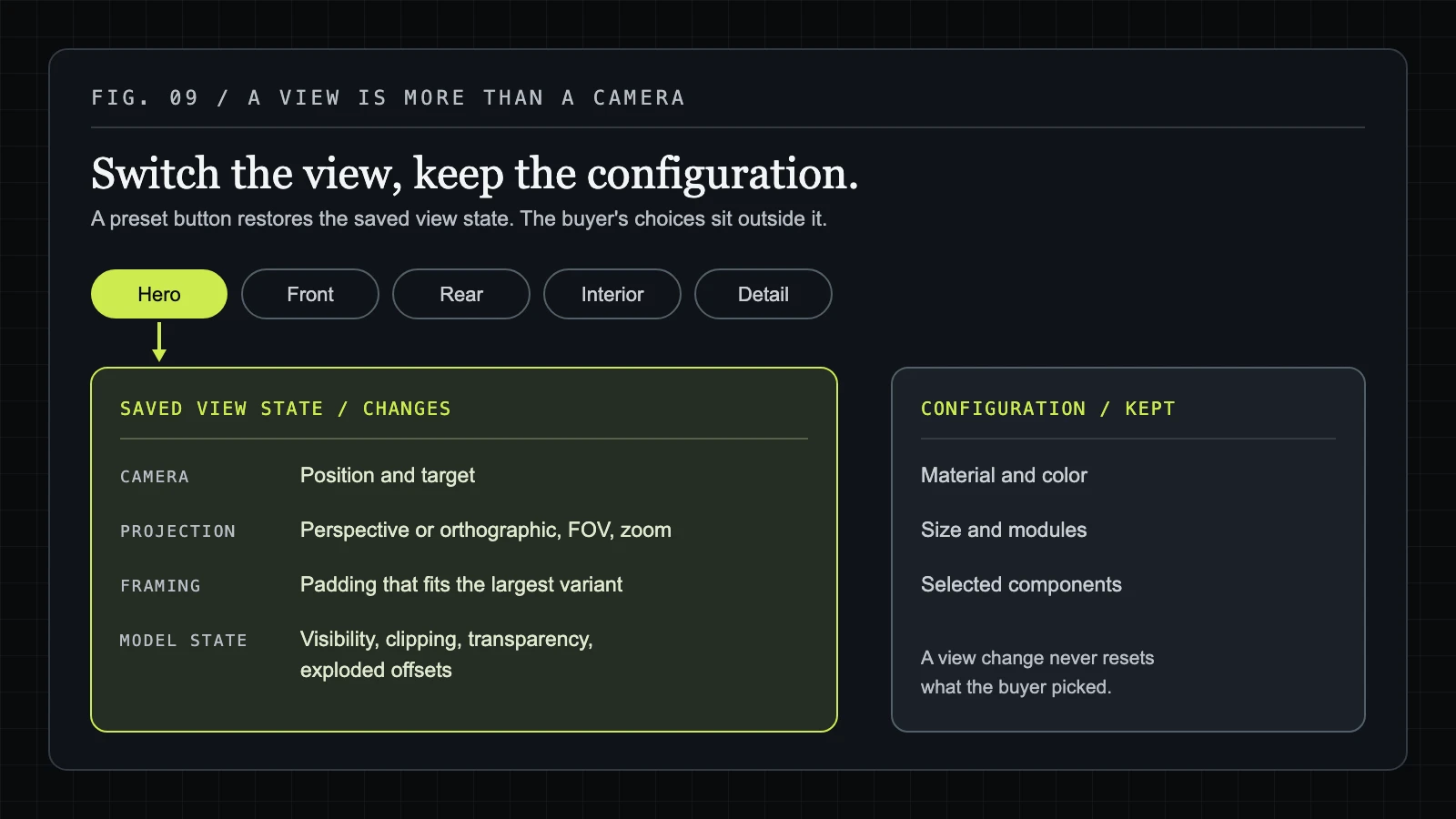
Keep controls compact, show the active preset, and provide Reset to Hero after free orbiting. Orbit, pan, zoom, focus, and reset are distinct interactions; keep them visibly separate in the controls. Don't confuse a camera preset with a material selection, product variant, or model state.
A pre-launch test for every saved view
Test every preset against the smallest and largest relevant configuration. A camera that frames a compact variant may clip a larger module or leave an important connector outside the viewport.
- Confirm framing, target, projection, clipping, and lighting for each configuration.
- Test mouse, touch, and keyboard access where the viewer supports keyboard interaction.
- Verify loading, preset switching, and return-to-hero behavior.
- Check that each view answers a buyer, installer, operator, or service question.
- Remove duplicate presets that expose no additional information.
For teams planning Three.js product configurator development, map every proposed preset to one written question before development starts. That short list will tell you which camera states belong in the viewer and which attractive angles should stay out.
References
Have a product like this?
Email us the details. We'll map out what a configurator could do for your product, zero obligation.